

A local archive of the project library that keeps itself current.
Project libraries grow for years and the important versions sit in folders nobody opens. ShareClone keeps a copy of the whole library, or just the folders you choose, on your Mac and refreshes it in the background.
Where it goes wrong today
The project ends, the site is archived or migrated, and the documents you will need for the next phase are suddenly harder to reach. Downloading the library by hand takes an afternoon and has to be repeated whenever something changes.
How ShareClone handles it
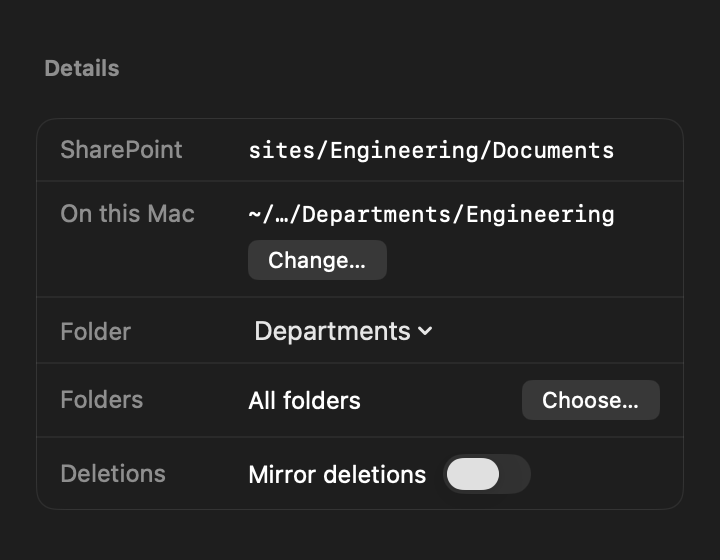
Add the project library once and pick the folders that matter. Group libraries in nested sidebar folders, for example one folder per programme. ShareClone downloads folder by folder and, on every later sync, fetches only the files that are new or changed.
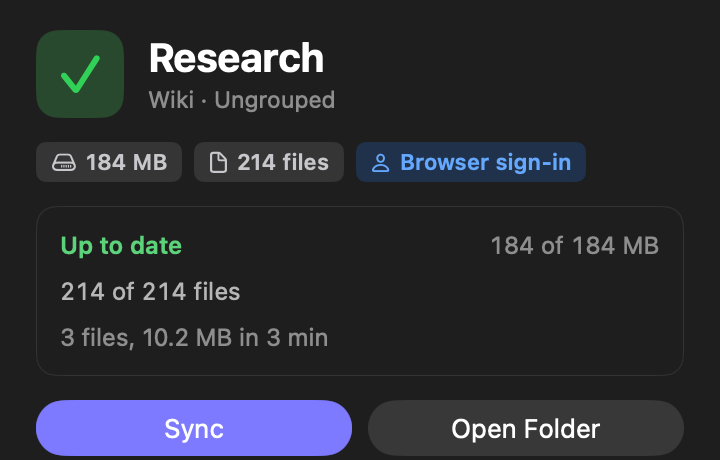
With the menu bar item on, syncs keep running after you close the window. Optional notifications tell you when a sync finishes, needs attention or needs you to sign in again. When you open ShareClone again, “While you were away” sums up what happened in each library.
What stays the same
Your files go to the folder you choose and stay there. ShareClone only reads from SharePoint and never changes anything in the project site.
Questions people ask
Can it handle very large libraries?
It is built for them: it works folder by folder, resumes after interruptions and fetches only changes on later syncs, with a progress line and exact counts. The first scan of a very large library can take a few minutes, and the item count keeps rising while it works.
What if my session expires?
The library shows “Sign in again”. Syncs you start yourself can open the sign-in window. Automatic syncs, at launch, after wake or from Sync All, never open a window on their own: they end with “Sign in again” and notify you if notifications are on.
Files already downloaded are untouched, and the sync continues after you sign in.
Where do my files go?
To the folder you choose for each library, optionally in a subfolder named after the SharePoint site. ShareClone never moves them afterwards.
The list of libraries, the history and your settings are stored in ShareClone’s own app data on your Mac.
Other people who use it
Consultants
A client’s SharePoint library on your Mac for flights, site visits and hotel Wi-Fi.
Auditors and review teams
A complete local copy of an evidence library, with exact counts and a readable log.
Analysts before a migration
A complete local copy of a library before it is moved or restructured.
Take SharePoint with you.


Coming soon to the Mac App Store
Free download. 14-day free trial.
Pricing details and purchase questions